How to Create a Complete Favicon Set for Your Website
I've been building websites since the mid-90s, and for most of that time a favicon was a single ICO file you dropped in your root directory. That's not enough anymore. Here's how to generate everything you need from one image.
I've been building websites and web applications since the mid-90s, and for most of that time a favicon was a single ICO file you dropped in your root directory and forgot about. That's not enough anymore. Your favicon now needs to work across browser tabs, home screen icons, PWAs, search results, and legacy browsers — each with different size and format requirements.
I built the Favicon Generator as part of my role at Rezero Software to solve this. Upload one image and get back everything you need in a single ZIP. This guide walks through what's in that package and why each file matters.
The modern favicon stack
A "favicon" is no longer a single file. It's a collection of files that serve different platforms and contexts.
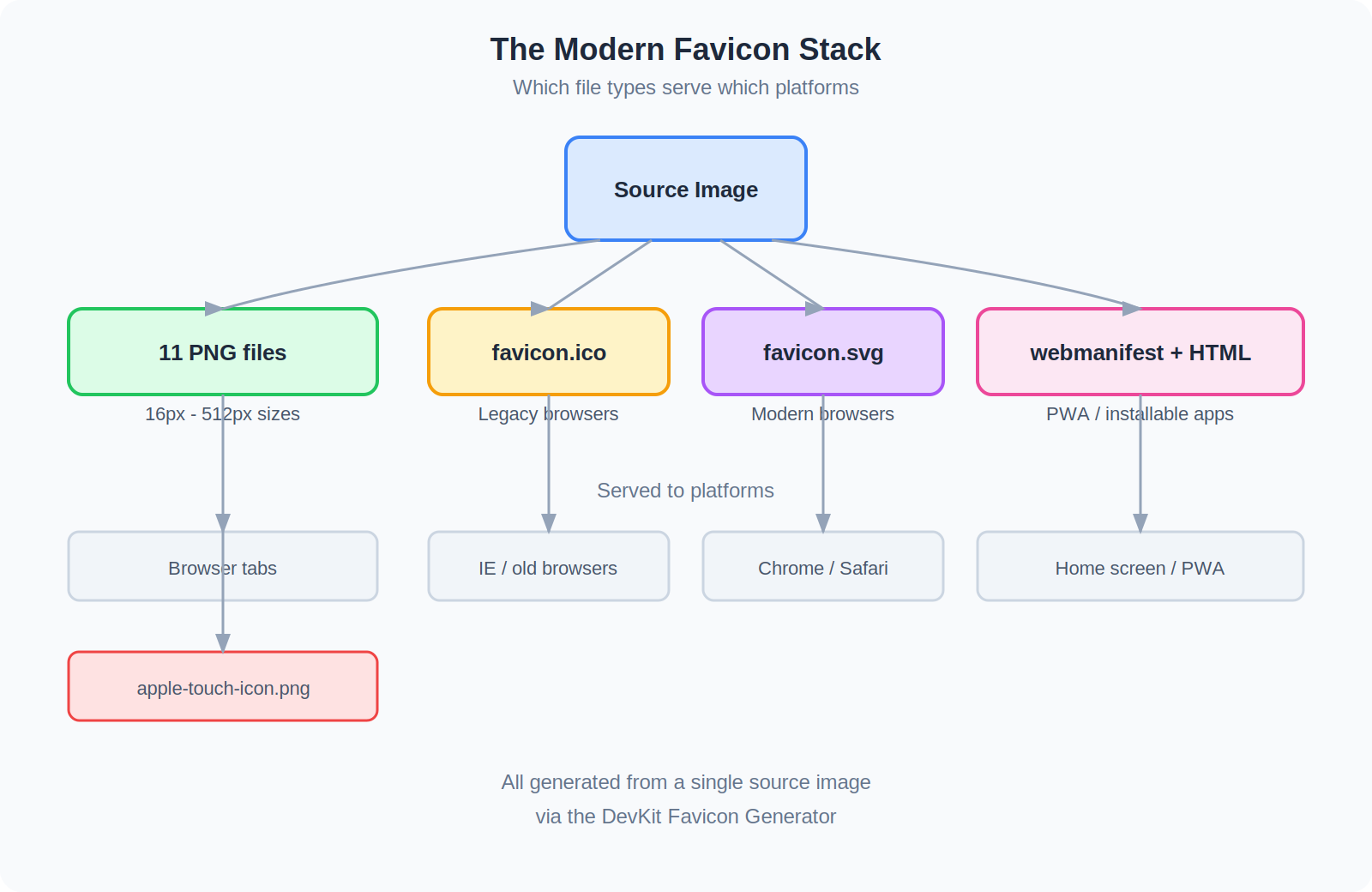
PNG files (11 sizes)
Modern browsers use PNG favicons in a range of sizes. The key ones:
- 16x16 / 32x32 — browser tabs and bookmarks
- 48x48 / 96x96 — desktop shortcuts and task bar pins
- 128x128 / 256x256 / 512x512 — high-resolution displays and Windows live tiles
- apple-touch-icon.png — iOS home screen when users "Add to Home Screen" (optimally 180x180)
- web-app-manifest-192x192 / 512x512 — referenced by your web app manifest for PWA installation
favicon.ico
The original favicon format. Still needed for legacy browsers (particularly Internet Explorer and some older Edge versions). A multi-resolution ICO bundles 16x16, 32x32, and 48x48 layers into a single file.
favicon.svg
Scalable vector version for modern browsers (Chrome, Firefox, Safari). Renders crisply at any size and supports dark mode via CSS media queries.
site.webmanifest
A JSON file that tells the browser your app name, display mode (standalone, fullscreen, browser), theme color, and background color. Required for installable web apps and Android home screen icons.
HTML snippet
A set of <link> and <meta> tags that wire all of the above into your page. Without these tags, browsers won't know where to find your icons.
What's in the generated ZIP
When you generate a favicon set, you get a single ZIP download containing:
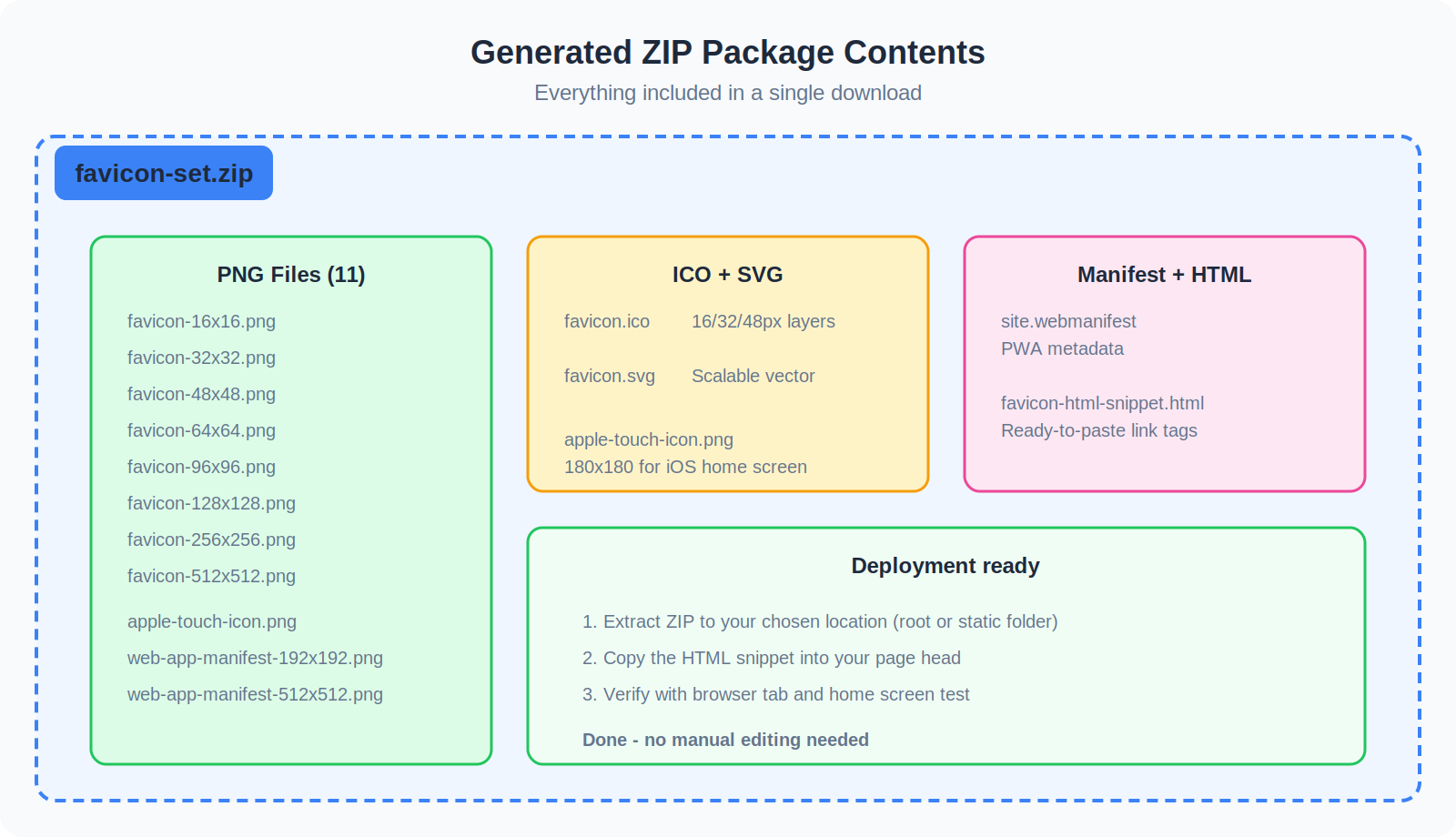
- 11 PNG files (favicon-16x16 through favicon-512x512, plus apple-touch-icon and manifest icons)
- favicon.ico (multi-resolution: 16/32/48px)
- favicon.svg (scalable vector)
- site.webmanifest (PWA metadata)
- favicon-html-snippet.html (ready-to-paste link tags)
Step-by-step: generating your favicon set
1. Prepare your source image
Use a square image for best results. If your logo isn't square, it will be centre-cropped automatically. Acceptable formats: PNG, JPG, WebP, GIF, or BMP, up to 10 MB.
One thing worth mentioning: if your logo touches the edges of the image, enable the "Add 10% transparent padding" option. It stops the icon from looking cramped at small sizes like 16x16, where every pixel counts.
2. Choose a deployment path
Open the Advanced options section and pick a deployment preset:
- Root — files go in your website root (e.g., /favicon.ico). The simplest option and the most common.
- Static folder — files go in a static assets directory (e.g., /static/favicons/). Best for Django, Flask, or other frameworks with a static files setup.
- Custom path — specify your own URL prefix (e.g., /assets/favicons). Use this if your static files are served from a CDN or non-standard path.
The path you choose affects the URLs in the generated HTML snippet and web manifest, so they'll match your site structure without manual editing.
3. Set manifest metadata (optional)
If you want your site to be installable as a PWA, fill in the manifest fields:
- App name — full name shown in app listings
- Short name — abbreviated name for home screen icons
- Display mode — how the app opens when installed (standalone, fullscreen, minimal-ui, or browser)
- Theme color — browser UI color (address bar on mobile)
- Background color — splash screen background
4. Generate and download
Click Generate Favicon Set. Everything is processed in your browser — your image never leaves your device. Download the ZIP and extract it to your chosen location.
5. Add the HTML snippet to your page
Open favicon-html-snippet.html from the ZIP and copy its contents into the <head> of your HTML:
<link rel="icon" href="/favicon.ico" sizes="any">
<link rel="icon" href="/favicon.svg" type="image/svg+xml">
<link rel="apple-touch-icon" href="/apple-touch-icon.png">
<link rel="manifest" href="/site.webmanifest">
<meta name="theme-color" content="#ffffff">
<!-- ...plus PNG size links -->
If you're using a framework with templates (Django, Flask, etc.), add this to your base template so it appears on every page.
A few things worth getting right
Only uploading a favicon.ico. This works for legacy browsers but misses modern high-resolution displays, iOS home screen, and PWA support. A 16px icon on a retina display looks rough. Generating the full set takes the same amount of effort.
Forgetting apple-touch-icon.png. Without this, iOS users who add your site to their home screen get a generic screenshot icon instead of your logo.
Missing the web manifest. No manifest means no PWA install prompt, no theme color in the mobile address bar, and no proper home screen icon on Android.
Wrong file paths. If your static files live in /static/ but your HTML snippet references /favicon.ico, browsers will 404. Use the deployment preset that matches your setup.
Not testing on actual devices. Favicons behave differently across platforms. After deploying, check a browser tab, add to home screen on iOS, and try installing as a PWA in Chrome.
Quick checklist
- Source image is square (or will be centre-cropped)
- Padding enabled if logo touches edges
- Deployment path matches your site structure
- Manifest metadata filled in (if PWA support needed)
- HTML snippet added to page head
- Tested in browser tab, iOS home screen, and Chrome PWA install
Generate your complete favicon set with the DevKit Favicon Generator — free, no sign-up, and your image never leaves your browser.
About the author: Richard Shaw is a software engineer with over 30 years of experience. He spent 20 years in automotive software, developing globally used customer retention solutions. A prolific SaaS developer, he now runs Rezero Software with his family — he loves solving problems with code. You can reach him at rich@rezero.net, visit rezero.net, or follow him on X at @RichShawX.